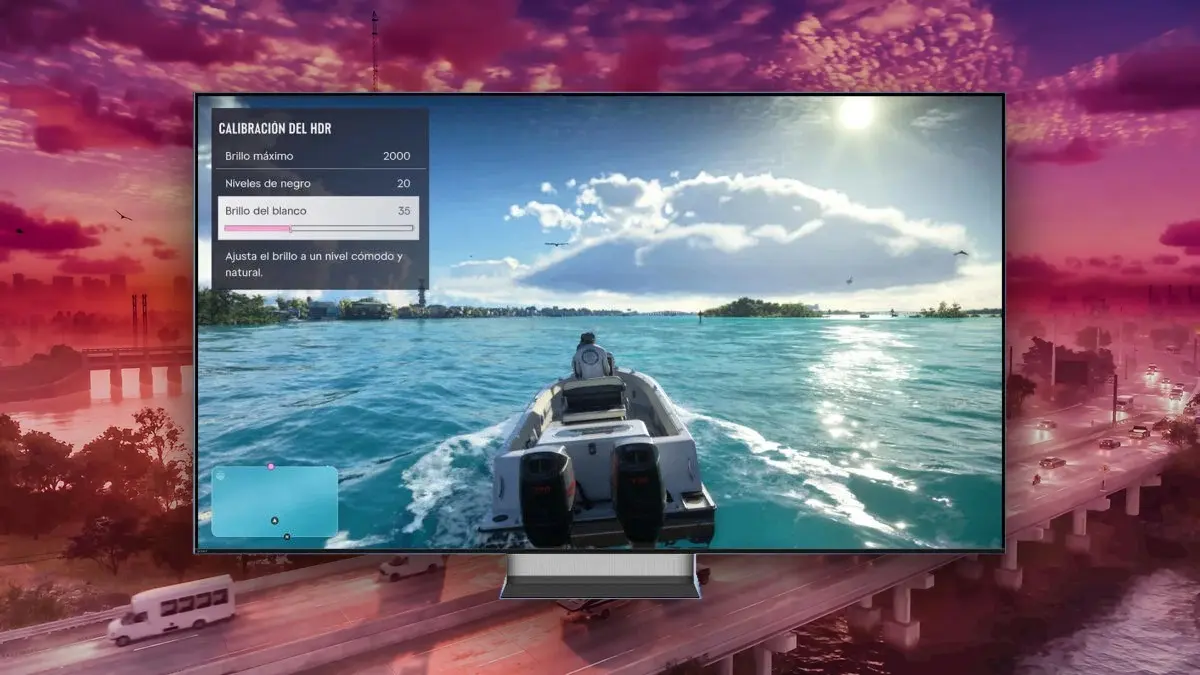
The HDR in GTA 6 calibration is so tangled that Mike Ybarra, former Blizzard president, stated in a post on X that Rockstar “made a mess of the HDR calibration, one of the worst I’ve seen,” and he advised players to use gtavihdrsettings.xyz, a free calculator that provides the ideal values for maximum brightness, paper white, and black levels depending on each player’s TV or monitor model, for PS5 and Xbox Series X|S.
Ybarra explained that if the exact TV doesn’t appear in the list, you can simply choose a similar model, for example the 55-inch version instead of the 77-inch one, and his advice went viral within hours, with more than 300,000 views, because many players feel GTA 6 looks too dark, washed out, or with blown-out highlights even when they follow the game’s calibration screen to the letter.
Why GTA 6’s HDR Looks Bad
The issue was first detected by HDTVTest, the television-focused channel run by Vincent Teoh, which, according to Pure Xbox, found that the figures shown by the calibration tool don’t fully translate into the game, potentially leaving an image far from ideal even if the player believes they have set everything correctly.
HDTVTest clarified that “the HDR rendering in GTA VI isn’t broken; it’s the calibration procedure that can yield misleading results,” because the three menu adjustments, namely Max Brightness, Paper White, and Black Levels, affect each other in unexpected ways, and changing one can throw off the results of the others.
The calculator Ybarra recommended itself explains that the Paper White setting changes both overall brightness and HDR maximum brightness in GTA 6, so it isn’t effective to configure each option separately as in other games, and that’s why so many players end up with a dim image or white areas with no detail.
How the GTA 6 HDR Tool Works
The site gtavihdrsettings.xyz presents itself as an independent, fan-made tool; it runs directly in the browser and does not require downloading any file, which is important at a time when hundreds of fake GTA 6 malware sites are circulating.
The system takes GTA 6’s measured brightness curve based on the Paper White value you choose, and looks for the Max Brightness value that closest matches your screen’s real maximum brightness, also taking into account the room lighting and the TV’s tone-mapping method, which may be HGiG or dynamic.
As an example, the page shows that for a 55-inch LG B4 OLED in a dark room the recommended values are Max Brightness 1200, Paper White 35, and Black Levels 20, though it notes that these are starting values and that each player can adjust them to their taste.
How to configure GTA 6 HDR step by step
- Open gtavihdrsettings.xyz on your mobile device or computer.
- Find your TV or monitor model in the list, and if it isn’t listed, choose a very similar one.
- Indicate whether you play in a dark room, in moderate light, or in bright light.
- Copy the three values the page provides you.
- In GTA 6, pause the game and go to Settings, then Display, and then HDR Calibration.
- Enter the values for Max Brightness, Paper White, and Black Levels.
- Resume playing and review how it looks, and if you wish, slightly adjust the Paper White.
HDTVTest values if you don’t want to use the calculator
For those who prefer not to use an external page, HDTVTest recommended an initial setup for displays that reach 1,000 nits or more, with Max Brightness at 2,000, Black Levels at 20, and Paper White at 35, designed for playing in a dark room.
If your TV has less brightness, HDTVTest’s rule is to look up online how many nits your screen can reach and double that figure for the Max Brightness adjustment, so a 600-nit TV should use 1,200, although Pure Xbox warns that some TVs’ picture features can alter the result and that fine-tuning is advisable.
Additionally, before calibrating in-game, it’s wise to enable your TV’s game mode, turn off motion smoothing and dynamic contrast, and enable HGiG if your screen has it, because that option makes the TV respect the console’s calibration instead of applying its own processing.
Rockstar Still Hasn’t Fixed GTA 6 HDR
For now, Rockstar has not announced a patch for the calibration tool, and GTA 6 adds this detail to other issues during its first week, such as frame drops of up to 23 FPS on PS5 and the Metacritic notes feud with Zelda fans, though in this case the solution lies in players’ hands and takes less than five minutes.
HDTVTest promised a second video with tests on more consumer televisions, so the recommendations could be refined in the coming days, but for now the calculator and the channel’s values are the quickest way to see Leonida with the colors and brightness Rockstar intended.
