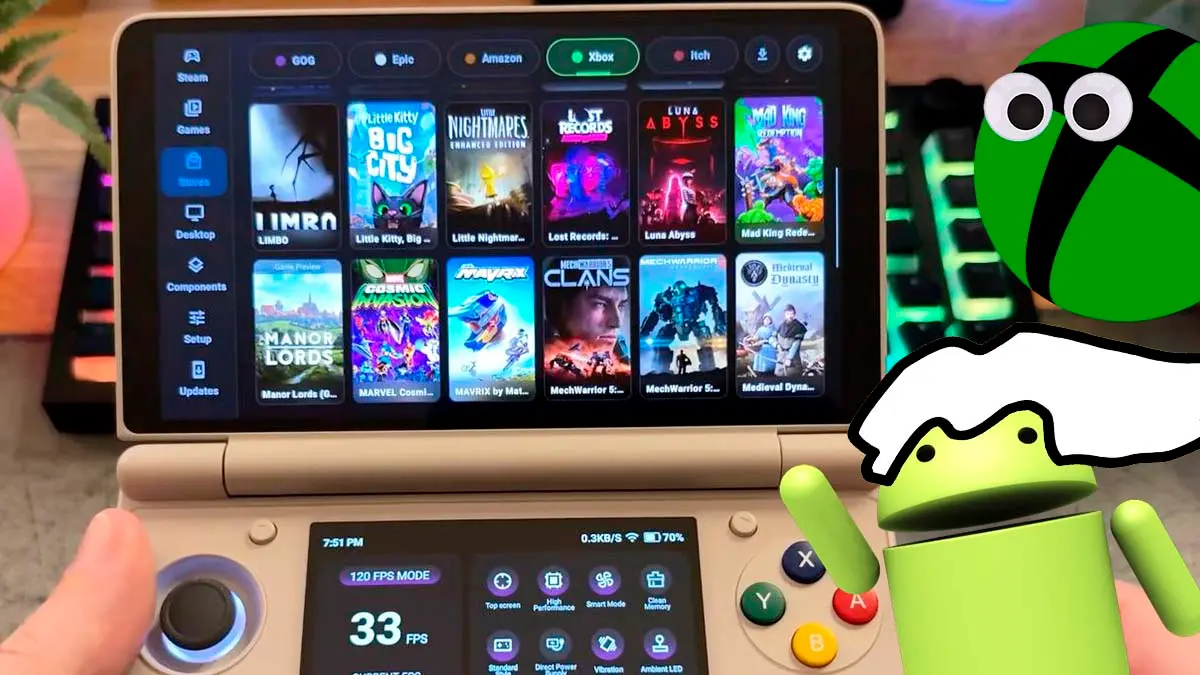
Xbox Cloud Gaming is a platform that lets you stream video games directly from Microsoft’s servers to Android phones, tablets, and handheld Android devices, making it possible to play cutting-edge titles without downloading them or occupying space on the device’s memory, something essential to bring advanced graphical experiences to small screens that don’t have the power of a desktop console or a gaming PC.
However, the quality of each session depends 100 percent on a fast and stable internet connection, with latency or interruptions when the network fails and a monthly hour limit, and in response to this the free tool DroidDeck released its 0.6.0 version, which allows downloading Xbox Game Pass games on Android and running them directly on the device. To achieve this it uses Proton, Valve’s compatibility layer that enables Windows games to run on ARM processors, and it works on phones and laptops with Adreno 730 or higher GPUs, that is, with Snapdragon 8 Gen 1 and newer.
The transition toward native processing on mobile phones
As many players will know, Microsoft recently cut Xbox Cloud Gaming, removing unlimited cloud access for Ultimate members and setting a maximum cap of 15 hours per month.
For those who want to keep playing once that time is exhausted, Microsoft charges additional time bundles starting at $3.99 for every 10 extra hours, according to Windows Central, a measure that frustrated players and revived interest in alternatives that run games locally.
That is where DroidDeck’s 0.6.0 update comes in, adding Xbox and PC Game Pass as an experimental store inside the app, where the player signs in with their Microsoft account, sees the games they own and those in the Game Pass catalog, and downloads them with the option to pause, resume, update, and manage their DLCs. It’s important to note that this is not Xbox emulation or piracy, because the app uses the same PC packages from the Microsoft Store and Microsoft verifies the license when downloading and playing, so only games you own or that are in your subscription work.
Although the program is still in a testing phase, it demonstrates that modern mobile processors have the power to move PC games locally, without depending on a remote server to stream the image.
This progress is part of a growing trend in the indie scene, where tools such as Xodus Nexus have emerged to bring PC Game Pass games to the Steam Deck, with DroidDeck borrowing part of its code to run Xbox games, and even projects that managed to run Xbox One games on iPhone, challenging the traditional barriers between different platforms.
Regarding performance, Windows Central’s tests show results that vary by game, and for example Hollow Knight Silksong exceeds 100 FPS on the Ayn Thor, a handheld Android console, something expected for a 2D game but that shows how well Xbox Game Pass can run on Android.
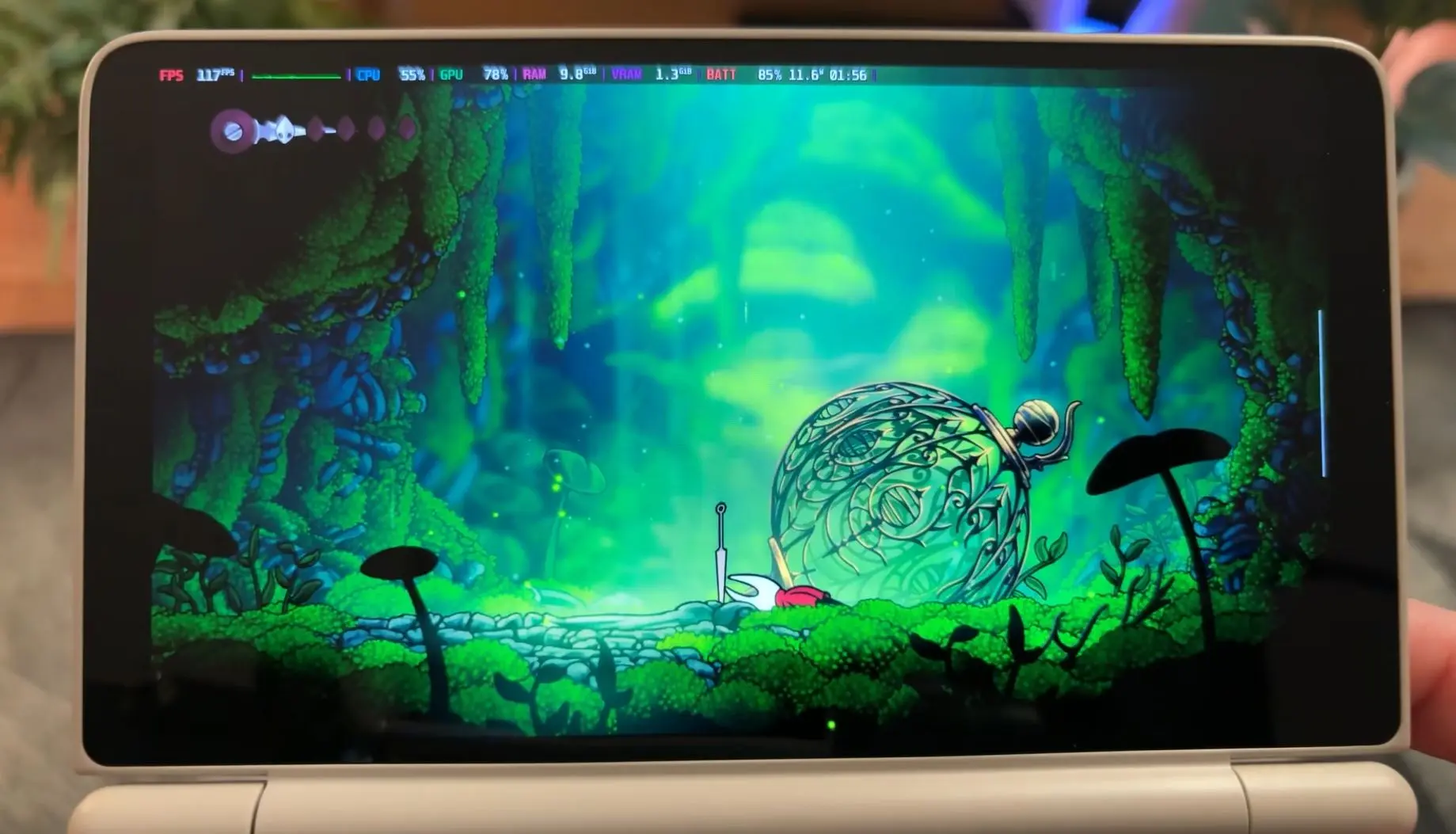
Meanwhile, Minecraft Dungeons 2, a more demanding 3D game, runs at between 30 and 40 FPS according to the same test, a playable figure for a handheld, and the 0.6.0 version also brings performance improvements on Adreno GPUs, which at peak increased FPS by 11.7%, so those figures could continue to improve as the team optimizes the code.
Integration of multiple stores and the portability vision
The value of DroidDeck is not limited to the Microsoft catalog, because it acts as a hub that brings together in a single interface the libraries from Steam, Epic Games, GOG, Amazon Games, and itch.io, the latter added precisely in version 0.6.0, with Steam in Big Picture mode as a base, just like on the Steam Deck.
This integration simplifies the management of digital games, because no root is required nor installing a separate app for each store, and as an open-source project on GitHub it advances very quickly, to the point that version 0.6.0 gathered 153 code contributions from 23 contributors, of which 73% came from the community.
This evolution drives a shift toward more compact gaming devices, because a phone with an attachable controller fits in the pocket and offers a more practical alternative to larger notebooks like the ROG Xbox Ally X, which due to their size often require a case or backpack to carry them daily.
In the end, for many players this combination resurrects the essence of classic portables like the Nintendo DS or the PSP, blending the convenience of taking it anywhere with the possibility of playing PC titles, and points to a future where the user can carry a vast catalog of games running locally, without depending on remote servers or bulky hardware.
How to install DroidDeck and play Xbox Game Pass on Android
Before you begin, keep in mind that the Xbox feature is in testing, so some games may not open or fail, and you need a Game Pass subscription that includes PC games, such as PC Game Pass or Ultimate.
- Check if your device is compatible. You need Android 9 or higher and a Snapdragon processor with an Adreno 730 or higher GPU, which includes the Snapdragon 8 Gen 1, 8 Gen 2, 8 Gen 3, and 8 Elite, while phones with Samsung Exynos chips, Mediatek with a Mali GPU, and Snapdragon with Adreno 710 are not compatible, and Adreno 600 series only works in experimental mode. If you don’t know what processor you have, search Google for your model name plus the word “processor”.
- Free up space. The app needs about 3 GB for its base system and 1.1 GB more if you want to use the desktop mode, to which you must add the size of each game you download.
- Download the APK. On your phone, go to DroidDeck’s GitHub download page, look for the latest version, open the “Assets” section, and tap the file that ends with .apk. DroidDeck does not have its own website, so do not download it from other pages that claim to be official.
- Install the app. Open the downloaded file and, if Android warns that it won’t allow installation from unknown sources, tap “Settings,” enable the permission for your browser or your file manager, and go back to tap “Install.”
- Install the base system. When you open DroidDeck for the first time, follow the button to install the Linux system the app needs, which weighs about 3 GB and may take several minutes depending on your internet speed.
- If you have Android 14 or higher, enable a developer option. Go to Settings, then to “About phone” (on some models it’s under “Software information”) and tap seven times “Build number” until a notice appears that you are a developer. Then go to “Developer options” and enable “Disable child process restrictions”, which in Spanish may appear as desactivar restricciones de procesos secundarios. On Android 12 and 13 the app will show a “Fix it for me” button that performs this adjustment for you.
- Launch Steam. Return to DroidDeck, press Play and sign in with your Steam account, which is downloaded automatically the first time you open it.
- Show the stores. Go to Setup, then to Stores, and enable the option “Show Stores in the rail” so that the stores appear in the side menu.
- Connect your Xbox account. Go to Stores, choose Xbox and tap Sign in, and in the Microsoft window that opens sign in with the account that has your Game Pass and complete the verification.
- Download a game. Refresh the library, choose a game and tap install, noting that the games in your subscription appear marked as “PC Game Pass” and that the developers recommend trying first with a lightweight one like LIMBO.
- Play. When the download finishes, press Play from the Games tab or from Steam, and be patient the first time, because the app prepares the game before launching it.
If you want to try it on your Android device, you can download it from its page on GitHub.
