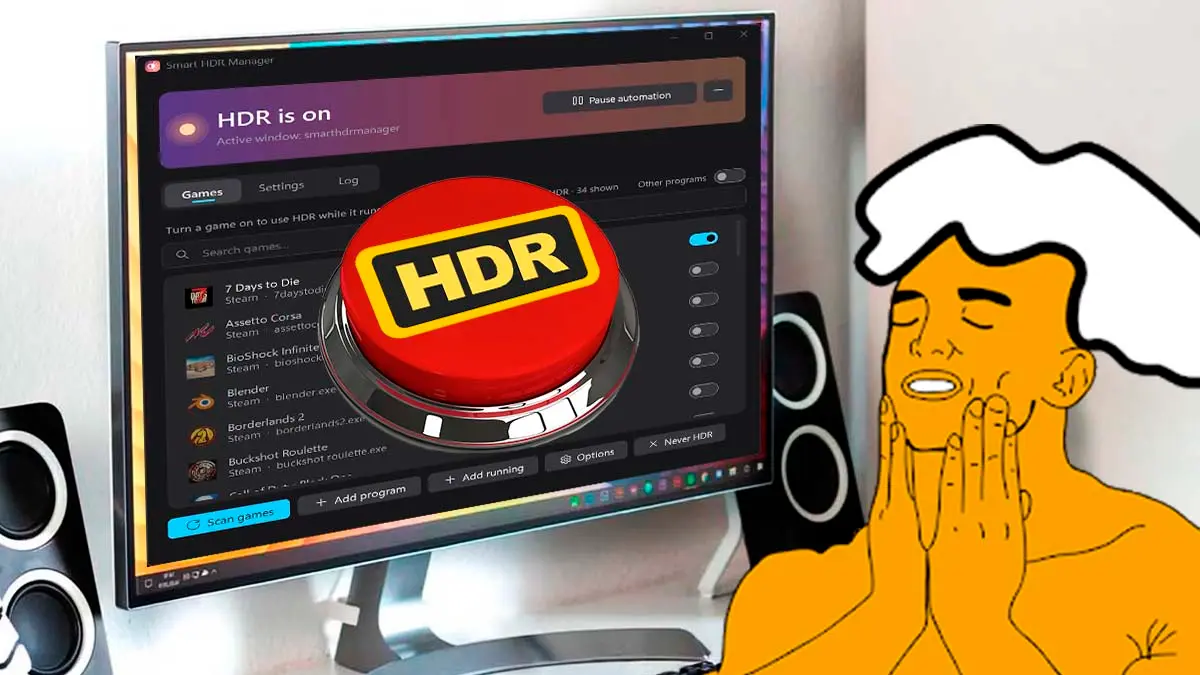
Smart HDR Manager is a small yet handy Windows application that handles turning on HDR automatically every time you open a game or play a compatible video, and turns it off when you’re done. It was created by a gamer who, according to his Reddit post originally in English, grew tired of “turning Windows HDR on and off manually, so I made a free app.”
It is a free, open-source tool, developed by programmer VantaCode420, that runs in the background in the system tray, next to the Windows clock. From there it detects games in your Steam or Epic Games libraries and videos on sites like YouTube, and automatically switches HDR on only when you really need it, without you having to intervene.
Automatic activation in games and beta features
As the creator himself explains, once you finish and close the content, the tool waits a few seconds and automatically turns HDR off, returning the monitor to its usual color mode (SDR). This saves you from manually entering the system settings or relying on the Win + Alt + B keyboard shortcut whenever you want better visual quality, and it also solves a common issue, since keeping HDR always on makes the desktop and normal content look washed out and grayish.
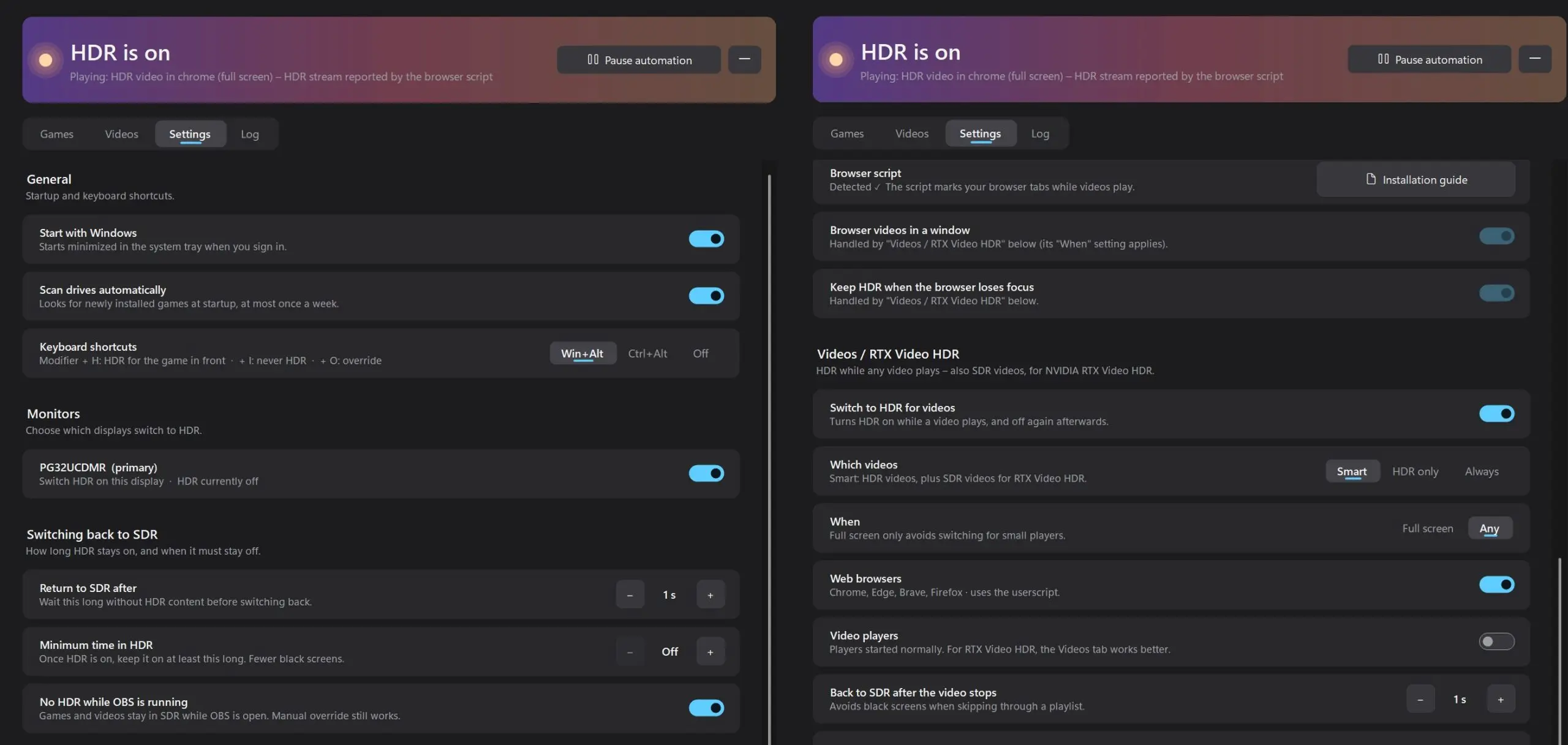
This utility can scan your game libraries across the most-used platforms, including Steam, Epic Games Store, GOG, Xbox, Ubisoft Connect, EA app and Rockstar Games Launcher. You can choose which specific games you want HDR activated for, and also set custom wait times in case a particular game shows flickering or unexpected crashes during the screen transition.
In case you have games or programs that aren’t detected automatically, you can add them manually without hassle. Version 2.5.1 added a very convenient feature called “Launch with HDR,” which turns on HDR a few moments before opening the game rather than waiting for the process to appear in the system, while the latest beta, 2.5.2, makes the switch work smoothly for games launched from a launcher, such as Cyberpunk 2077, The Witcher 3 from GOG, or Rockstar titles.
“Launch with HDR” is designed for some games that only show their HDR option if the screen is already configured that way from the start, which previously required restarting them. Likewise, the tool includes an option to block automatic activation while OBS is open, so your recordings or live streams don’t come out with burned colors.
HDR automatically also in YouTube and your movies
For those who enjoy online multimedia content, the application can recognize HDR videos on YouTube with a small browser script, which is installed with the Tampermonkey extension and notifies the program when it should switch modes.
If you prefer to view files stored on your computer, compatibility extends to the most popular players, such as VLC, mpv, MPC-HC, MPC-BE and PotPlayer, with the option to choose which monitor is switched to HDR and whether the change occurs only in fullscreen or also in windowed mode.
Additionally, the program is compatible with NVIDIA RTX Video HDR, a technology that uses GeForce RTX cards to convert common SDR videos to HDR. Although this feature must be enabled first in the NVIDIA App, the tool handles turning HDR on automatically for it to work, and its dedicated video tab activates it just before opening your favorite player, which is when RTX Video HDR works best.
Development status, limitations, and availability
It’s worth noting that the project is still in beta, and its creator tested it on a system with Windows 11 version 25H2, an NVIDIA GeForce RTX 5070 Ti, and a single HDR monitor. For this reason, behavior on laptops, multi-monitor setups, or systems with AMD and Intel GPUs has not been thoroughly tested yet, although the HDR switch uses Windows’ standard functions, so it should work, and the only NVIDIA-exclusive feature is RTX Video HDR. For now it also does not work with Netflix, Disney+, or Apple TV.
On the security front, the creator says the program does not connect to the internet, has no telemetry or ads, and is safe with anti-cheat systems since it does not read or modify game memory and only checks process names and window titles, just like the Task Manager. As a curious note, according to WindowsForum, a significant portion of the code was programmed with the help of the AI Claude.
How to install Smart HDR Manager
To have automatic HDR on your PC you need 64-bit Windows 10 or 11 and a monitor capable of HDR that appears available in Windows display settings. You can obtain the tool completely free from its GitHub releases page, where the full instructions in English are also available.
- Download the file that ends in win-x64-standalone.zip, which works on any 64-bit Windows without installing anything else.
- Extract it to a fixed folder, for example C:ToolsSmart HDR Manager, and do not run it from Downloads or from inside the compressed file.
- Open SmartHdrManager.exe. If Windows shows the warning “Windows protected your PC,” click “More info” and then “Run anyway,” since the program is not digitally signed.
- On the Games tab, click Scan games to detect your libraries and choose which games you want HDR for.
- If you want it to launch at startup, enable Start with Windows in the settings.
- For YouTube, install the Tampermonkey extension in your browser, enable the option Allow user scripts in the extension details, and add the SmartHdrManager_YouTube.user.js script that comes with the download.