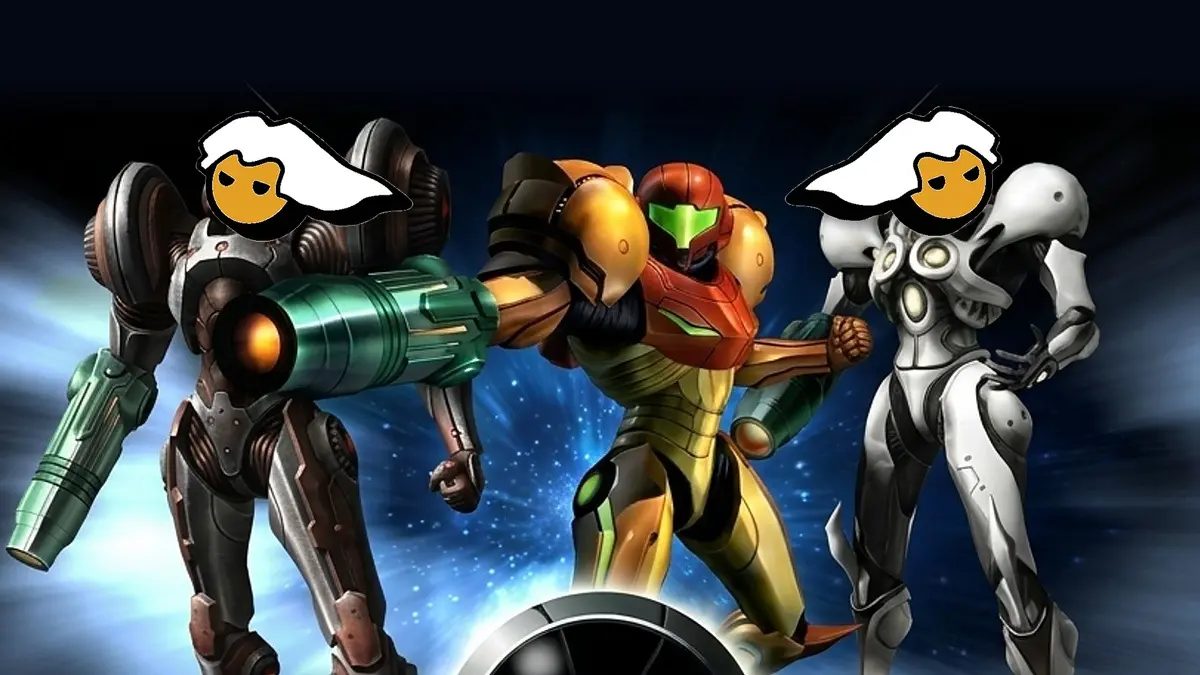
Echoes Unbound, the PC port of Metroid Prime 2 Echoes that runs without an emulator on Windows, Linux and Mac, and that also arrives on Android and, experimentally, on iPhone. The project arises from the decompilation of the GameCube game, reconstructing its original code to compile it as a native computer program, and is the work of the same creator of the PC port of Metroid Prime, who now continues Retro Studios’ trilogy with its second installment.
The first public version was released on October 28, and barely a day later came version 0.6.2, which adds widescreen with the HUD adapted, resolution scaling, high FPS with frame interpolation and a field of view adjustment, as well as mouse aiming, gyroscope and fully remappable controls. Its most celebrated improvement among fans is the option to skip the slow portal transitions between the light world and the dark world of Aether, one of the most repetitive parts of the original game.
What the PC port of Metroid Prime 2 brings
Graphically, Echoes Unbound lets you push the resolution up to four times the original, which on the GameCube was 480p, remove the frame cap or set it between 30 and 500 FPS, with frame interpolation so animations look smooth beyond the original 60 FPS, and enable MSAA 4x anti-aliasing, anisotropic filtering, and dynamic resolution, which adjusts quality to keep performance steady. It also lets you scale the HUD, hide Samus’s helmet and visor effects for a cleaner view, load HD texture packs, downloaded separately, and use a photo mode with free camera and high-resolution captures, as well as mods and the option to change the colors of the Varia, Dark and Light suits.
To make the game more comfortable, the PC port of Metroid Prime 2 adds cinematic cutscenes that can be skipped, saving anywhere, quick resume upon reopening, and optional tweaks such as a faster Morph Ball, the Spring Ball, or auto-targeting when pressing once, although everything can be disabled with the Original experience switch, which restores the GameCube game’s behavior. It also brings an item randomizer for those who want to replay it with a different route.
Echoes Unbound works with GameCube discs in their United States and Europe versions, and with Metroid Prime Trilogy for Wii, whose HUD, sights and radial menus can be used on the computer, although the creator notes that this PC port of Metroid Prime 2 is still a preview version and asks to report any errors that appear.
How to install the Metroid Prime 2 PC port
Before you get started, you need your own disc image of Metroid Prime 2 Echoes from GameCube (USA or PAL) or Metroid Prime Trilogy for Wii, in formats .iso, .gcm, .rvz, .wia, .gcz, .ciso or .wbfs, because the port does not include any game files.
- Download the port. Go to the Echoes Unbound download page on GitHub, find the latest version, open the “Assets” section and download the file metroid-prime2-port-0.6.2-windows-x86_64.zip if you are on Windows.
- Extract the file. Right-click the .zip, choose “Extract All” and save it in a folder where you can write, such as Documents, because that is where your saves and options will be stored.
- Open the game. Enter the folder and double-click metroid_prime2_port.exe, and if Windows shows the message “Windows protected your PC”, click “More information” and then “Run anyway”.
- Choose your disc. The first time the port will ask for the game file, so locate your disc image on your computer and select it.
- Open the options menu. Once inside, press F1 on the keyboard, or Start and Back at the same time on the controller, to enter the menu where all graphics, controls and enhancements settings are.
- Enable portal transitions skip. In that menu go to Game and enable Portal Transition Skip, the option the creator himself recommends to cross between the two worlds without waiting for the animation.
- Enable modern controls. The port preserves the original GameCube controls, where the right stick does not rotate the camera, so in the F1 menu go to Quick setup and choose Use twin-stick controller to aim with the right stick as in a modern shooter, or Use mouse & keyboard if you play with keyboard and mouse.
- Adjust the graphics. In the same menu, go to the video section to raise the resolution, enable widescreen, remove the FPS cap and choose the rest of the graphical enhancements to your liking.