If your PlayStation controller has drift, that annoying issue where the character or the camera moves on its own even when you’re not touching the stick, you can now fix it for free, without opening it and directly from your browser, because DriftGuard, the tool created by ModyfikatorCasper and Lewy20041 that a few months ago managed to calibrate all Xbox controllers, has announced that it is now compatible with PlayStation controllers from PS3 to PS5, including the DualSense, the DualSense Edge, the Access Controller, the Navigation Controller and the PS VR controllers, and it allows recalibrating the center of the sticks, their movement range, and the triggers without paying for a repair. The best part is that the settings are stored in the memory of the controller itself, so the fix remains effective when you reconnect it to your console, and that matters because a new DualSense costs around 70 dollars and a DualSense Edge around 200, a figure hard to justify when the problem is often resolved with a good calibration.
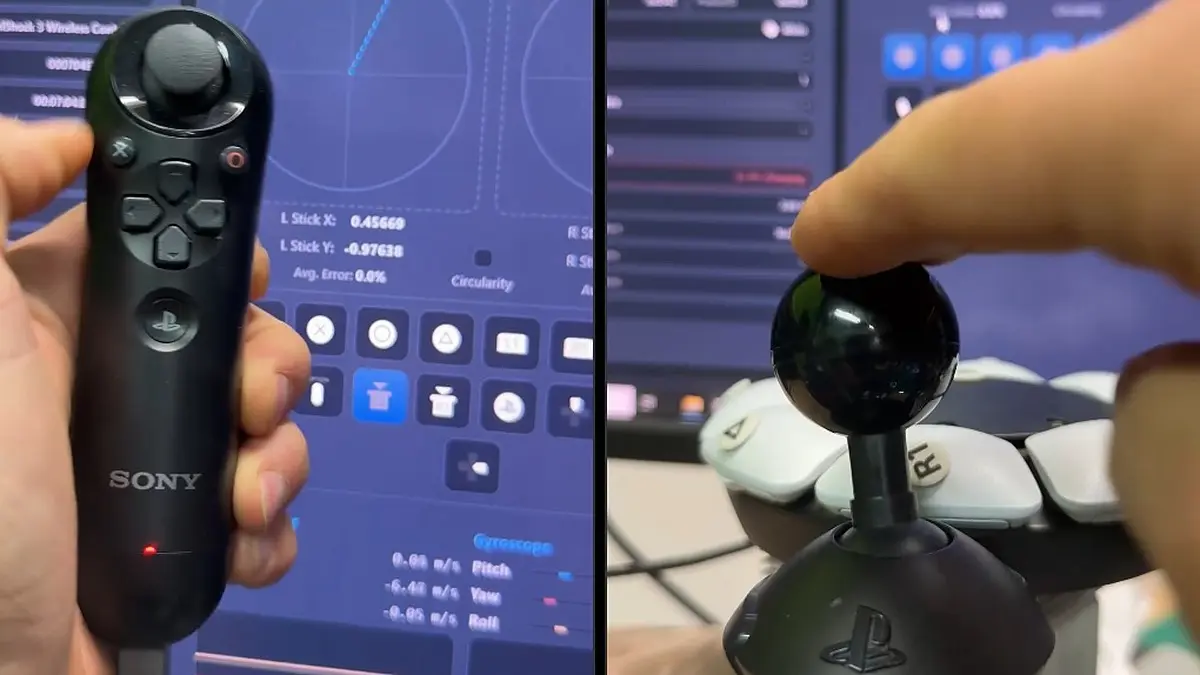
The announcement was accompanied by videos showing the calibration in action with rather unconventional controllers, such as the PS3 Navigation Controller and the joystick of the Access Controller, demonstrating that the tool isn’t limited to the DualSense and that it can also bring back life to controllers that are today difficult to replace. To use it, you simply connect the controller to the computer via USB or Bluetooth and open the page in Chrome, Edge, or Opera, with no software to download or account to create, and in a few minutes you can check whether the problem is calibration or if the stick is worn and needs replacement.
What you can adjust on your PlayStation controller
Since PS3 controllers onward, DriftGuard provides access to internal calibration features, such as the stick center, the movement range on the X and Y axes, and, on compatible models, the triggers, and the most interesting part is that the calibration is stored in the memory of the controller itself, so it works on any console or computer you connect it to.
PS1 and PS2 controllers are not calibrated with DriftGuard, but the creators’ tests yielded a useful tidbit for those still using a PS2, because they discovered that their controllers have built-in adaptive calibration, and that by rotating the stick fully or moving it to the limit in all four directions, the center becomes much better aligned again, so before giving up on a drifting DualShock 2, it’s worth trying that movement.
That said, you should be aware that DriftGuard does not repair a damaged or worn stick, because if the problem is physical calibration won’t solve it, but it can correct drift when the control is simply out of calibration, which is one of the most common cases.
How to use DriftGuard on your PlayStation controller
- Open driftguard.app from Chrome, Edge, or Opera on your computer, because the tool runs directly in the browser and you don’t have to install anything.
- Connect your controller to the computer via USB cable or Bluetooth.
- Select your controller in the tool and review the drift diagnostic, which shows whether the sticks move without touching them.
- Use the calibration option to adjust the center and the range of each stick, following the on-screen instructions.
- Save the calibration to the controller and test it on your console.
DriftGuard also has an Android app and a paid Steam version, but the browser version is free and sufficient for most cases. If you want to know how it all began, you can review the first version of the tool, which was already compatible with the DualSense and the DualShock 4.
