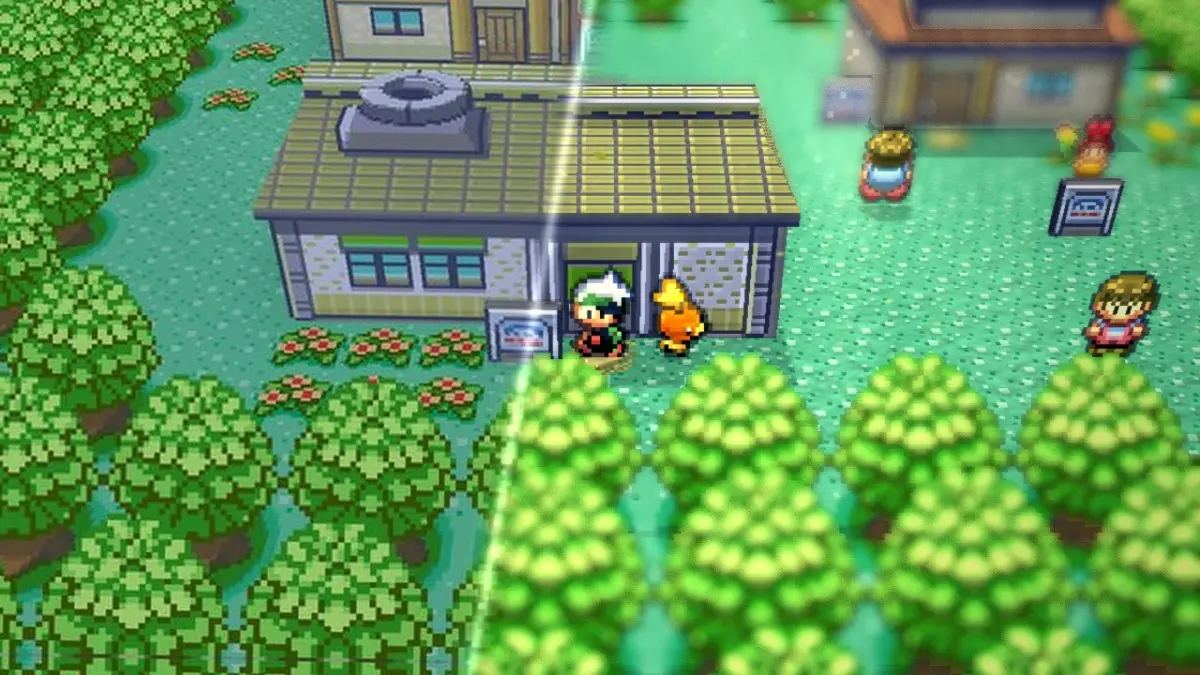
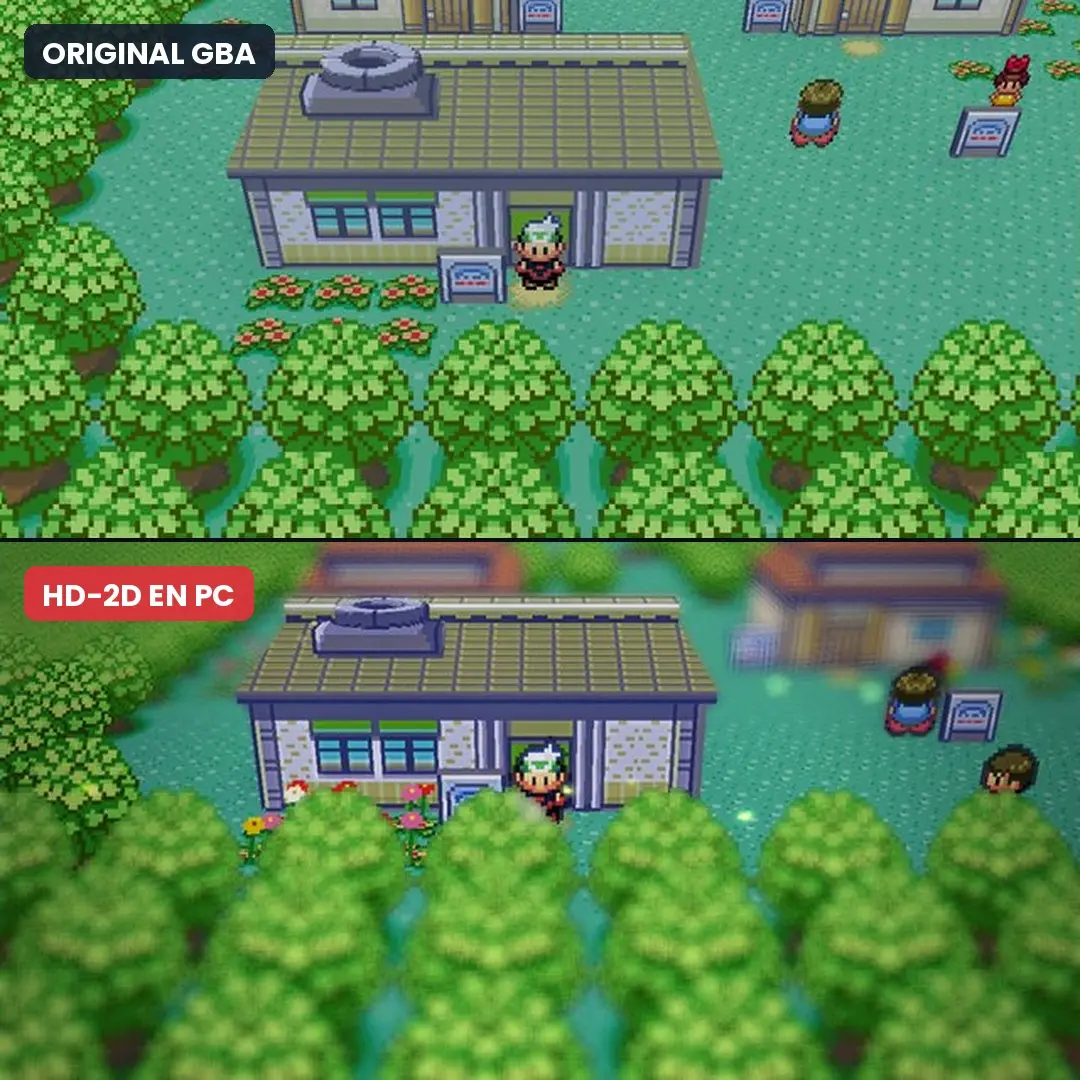
The programmer marcoscodas released , a free project that converts , the 2005 Game Boy Advance classic, into a native Windows, Linux, and Steam Deck game without emulation, and that also refaces it with a visual style inspired by HD-2D, the technique Square Enix popularized with Octopath Traveler, where pixel-art characters move across environments with modern lighting, depth of field, and light effects that make everything look like a miniature model.
The first installer version, 0.1.1, was released on November 15 and works with an application that assembles the game on your own computer from your copy of Pokémon Emerald, adding rain, wet ground, fog, and fireflies, options for 30 and 60 FPS, and a presentation that reimagines the Hoenn region, though it remains a fan project in active development that preserves the game’s original gameplay and still has features pending, as you’ll see below.
What Bravely Emerald is and how it changes Pokémon Emerald
This port starts from the decompilation of Pokémon Emerald, a community project that rebuilt the game’s original code, and that enables the entire game to run as a native program on your computer instead of running inside an emulator, opening the door to modifying its appearance in ways an emulator doesn’t allow. In addition to the PC version, the repository mentions prior community work, such as a version for PS Vita.
On that basis, Bravely Emerald adds a suite of visual effects with bloom (the soft glow around lights), tilt-shift blur that makes the scene look like a model, light shafts that cut through the environment, and a camera tilt adjustment, which together give Pokémon Emerald that modern RPG look in the HD-2D style Square Enix popularized with Octopath Traveler.
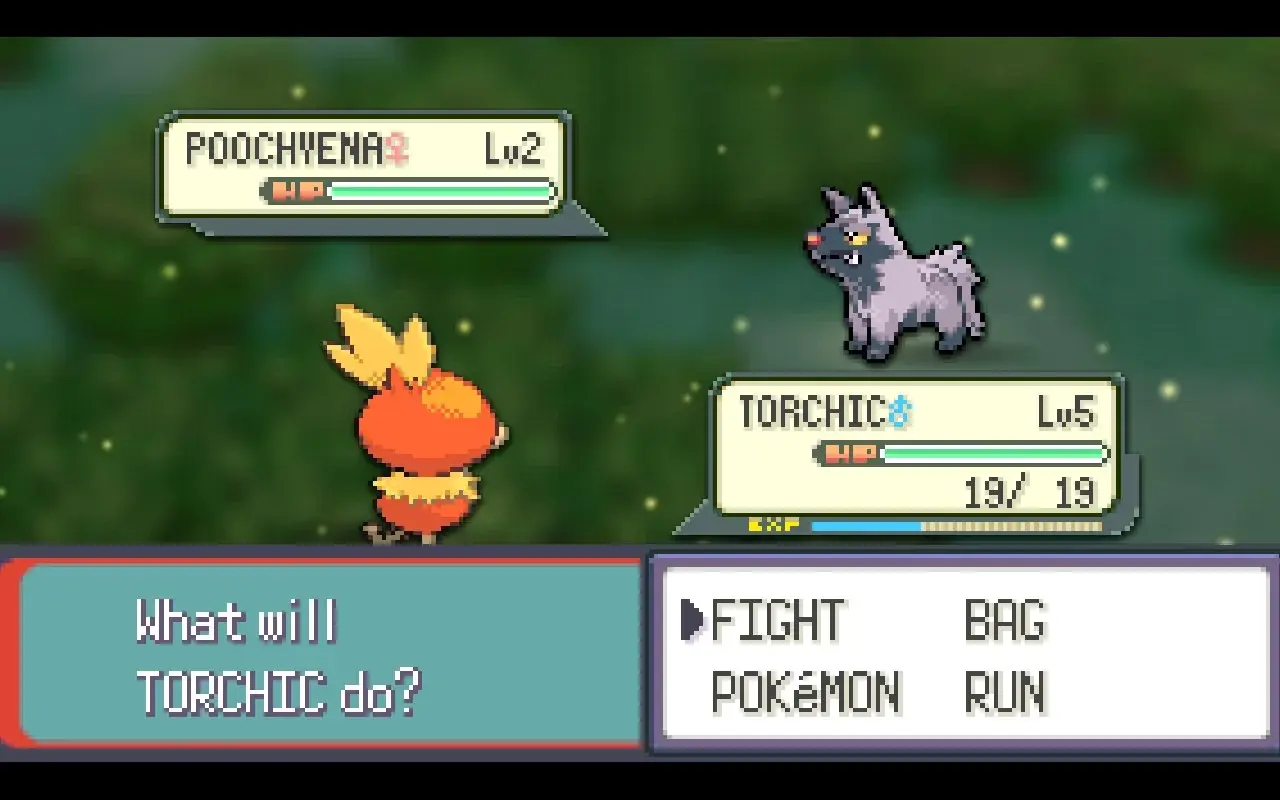
The weather also changes completely, with rain drops, wet ground, fog, splashes, trees swaying in the wind, and fireflies, while in battles the background appears blurred and darkened behind the Pokémon, which retain their original Game Boy Advance sprites, adding more depth to each fight. In terms of smoothness, the game lets you choose between 30 FPS, the default, and 60 FPS.
What the PC version still lacks
Some social posts describe the project with fully 3D battles and Pokémon following you around the map, but in the PC version battles keep the original Pokémon on a blurred background, and the Pokémon that follow you on the map in the HeartGold/SoulSilver style are listed for the PS Vita version, not for Windows or Steam Deck.
Additionally, the author notes that the full build of the game has only been tested on Windows 10, and that on Linux and Steam Deck it has not yet been verified end-to-end, so players are asked to report how it runs. The repository itself also marks the frame rate with all effects enabled and the 30 FPS mode as items to review, so it’s normal to find rough edges in this first release.
Requirements to play the PC port of Pokémon Emerald
To play you need your own Pokémon Emerald US ROM, because the download does not include any game files, and the application checks it before starting and notifies you with the message “Pokemon Emerald found (USA)” if it is correct. Since it uses the US version, the game is in English. According to the author, the ROM is only read to verify it and is never copied, stored, or uploaded online, and the game you build is strictly for personal use and must not be shared.
Regarding your computer, you need Windows 10 or 11 64-bit, or 64-bit Linux with glibc 2.39 or newer, including Steam Deck in Desktop Mode, plus internet access, about 15 GB of free space, and patience, because the first build takes 30 to 60 minutes. An important tip is that your Windows username and the folder where you build the game should not contain accents, ñ, or spaces, because the author notes those characters can still cause issues.
Step-by-step to install Pokémon Emerald HD-2D on Windows
- Go to the project’s download page on GitHub and, in the latest version, scroll to the Assets section and download the file BravelyEmeraldBuilder-win.zip, which is about 46 MB. Do not download the files labeled Source code.
- Right-click the downloaded file, choose Extract All, and extract it to an easy-to-find folder.
- Open the folder and double-click BravelyEmeraldBuilder.exe. You don’t need to install Python or any other program on your own. If Windows shows the message “Windows protected your PC,” click More information and then Run anyway.
- Click the Browse button, locate your Pokémon Emerald ROM and wait for the confirmation message to appear beneath the field.
- In the “Where to build?” section, leave the default folder, DocumentsBravely Emerald, or choose another location that has no diacritics or spaces.
- Check the consent box that says “Yeah, download the nerdy stuff needed to build…,” which authorizes the app to download the necessary tools. The link next to it shows the list of everything that will be downloaded.
- Click Build and wait between 30 and 60 minutes. The app checks your PC, automatically installs MSYS2 and the compilers if you don’t have them, downloads the project files, compiles the game, and packages it. If you want to see progress in detail, click Show details >>.
- If any step fails, the window will show a suggested solution and you can press Retry or Try again. If the problem persists, use the Copy log button to copy the log and report it on GitHub.
- When it finishes, press Play to start playing, or Open folder to open the game’s folder. In future runs you can open it by double-clicking the run.bat file inside that folder.
If your computer slows down a lot during the build, you can adjust how much CPU the app uses by clicking Settings… in the bottom-left corner, with options Low, Normal, and High, and Low is the default.
How to install it on Steam Deck and Linux
- If you’re using Steam Deck, switch to Desktop Mode from the power menu.
- Download the file BravelyEmeraldBuilder-linux-x86_64.tar.gz from the same downloads page and extract it.
- Open a terminal in that folder and run sh install.sh, which installs the app and adds a launcher to the menu.
- Open the application and repeat the Windows steps to choose the ROM, the folder (default is ~/emerald-deck), and the consent checkbox.
- Click Build. On Linux the build uses an Arch Linux container of about 400 MB, and if you’re missing the distrobox or podman programs, the app pauses and shows you the exact command to run in the terminal to install them.
- When it finishes, add the Steam shortcut to play from Gaming Mode. The final screen includes a Help button with steps to do so.
Thus, Bravely Emerald joins the long list of PC ports the community has released in recent weeks, and it differs from Gamma Emerald, the fan-made remake of Pokémon Emerald we talked about in August, because while that project reworks the game with new battles and berries that grow in real time, Bravely Emerald preserves the original game intact and only changes its visual presentation, making it one of the most striking ways to relive Hoenn just as you played it on the Game Boy Advance.
