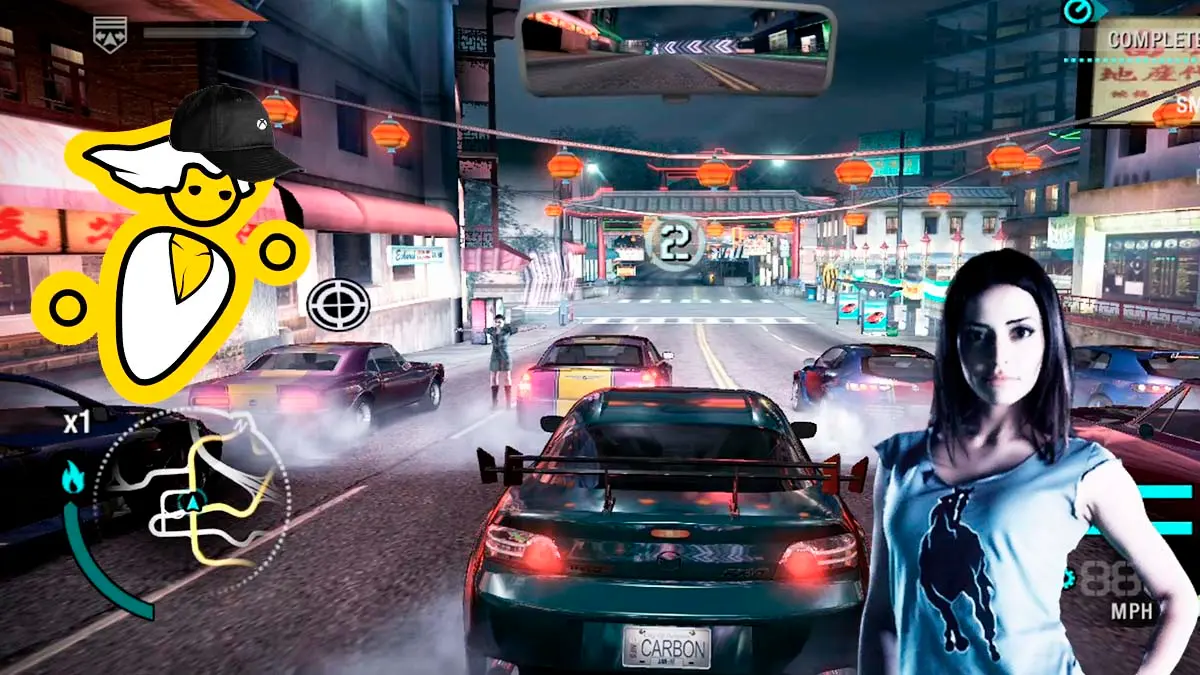
A group of independent developers published the beta version 0.751 of the PC port for Need for Speed Carbon, based on the Collector’s Edition that released on Xbox 360 in 2006. The port runs without an emulator, like a native Windows program. You can play at 30, 60, 120 or up to 240 FPS without speeding up the race clock, the physics, or the rivals. It also raises the resolution up to 4K and runs on ultrawide 21:9 and 32:9 displays without the image being stretched.
To achieve this without relying on an emulator, which consumes many more resources, the team used the tool ReXGlue. This translates the Xbox 360 processor code ahead of time and converts it into a program that current PCs understand directly, with graphics running in Vulkan or DirectX 12. According to GameGPU, this project is very different from the commercial PC port that arrived in 2006, because it preserves the visual effects, shaders and lighting of the console version. The port itself includes a profile designed to make the game look the same as on Xbox 360, though its creators have only tested the first part of the career mode so far.
Playable Experience, Graphics Engine, and Control Systems
In case you’re not familiar with this game, Need for Speed Carbon is a title about illegal street racing at night, where you race through the urban districts and the dangerous canyons of Palmont City. This version includes circuit, sprint, and canyon races, in addition to the start of career mode with the city map, the garage, car customization, and free roam through the city.
Graphically, the Need for Speed Carbon PC port offers two profiles. The Original profile keeps the 720p at 30 FPS of the Xbox 360 so the game looks identical to the console version. The Remix profile raises the internal resolution to 1440p at 120 FPS, with 16x anisotropic filtering and the AMD CAS sharpness filter. From the advanced settings you can also push the resolution up to 4K and the cap up to 240 FPS. On ultrawide displays, the port shows a broader field of view to the sides and brings race information to the edges, while videos and loading screens stay in 16:9.
In terms of controls, you can use an Xbox controller and the keyboard simultaneously, and the main menu adds the PC SETTINGS and EXIT TO DESKTOP options to quit the game without forcefully closing it.
Is it available in Spanish?
The project does not detail the available languages. The port displays the texts from your own Collector’s Edition disc, so Spanish would depend on whether your disc includes it, and the PC SETTINGS menu is in English.
System requirements, installation procedure, and advanced settings
To play smoothly on your PC, it’s advisable to first check what you need, perform a clean installation, and understand the options offered by the port. As always, you must own your own copy of the game to use it, because for legal reasons its creators do not include it.
Recommended technical requirements
- Operating system. 64-bit Windows 10 or 11.
- Graphics card. A card compatible with Vulkan 1.3 or DirectX 12. The Original profile requires very little, while the Remix profile at 120 FPS asks for a recent mid-range or better GPU. So far it has only been tested on an NVIDIA RTX 5080, and AMD and Intel GPUs have not yet been tested.
- Software libraries. You must have the Microsoft Visual C++ 2015–2022 (x64) package installed, available at this link.
- Original game files. You need the Xbox 360 Collector’s Edition disc image, which weighs around 7.3 GB. The normal version and versions from other regions do not work, because they use a different executable and the game checks it at startup.
Installation guide and first boot
- Download the port. Get the ZIP file of the project, available at this link, and extract it to any folder on your hard drive.
- Open the game. Double-click the nfsc.exe file.
- Choose your copy of the game. The first time you run it, a window will ask for the location of the original game. Select the disc ISO image, or the default.xex file if you have the disc extracted to a folder.
- Check how it saves the path. The program remembers the path you chose in the file Documentsnfscgame_path.txt, so if you want to use another file in the future simply delete that document. You can also place the ISO file, or a folder named game, next to nfsc.exe to skip the startup window.
- Don’t worry about the network warning. It’s normal for the message “Cannot connect to Xbox Live!” to appear when loading, because the console’s online features aren’t available. Your save files are kept in the Documentsnfsc folder.
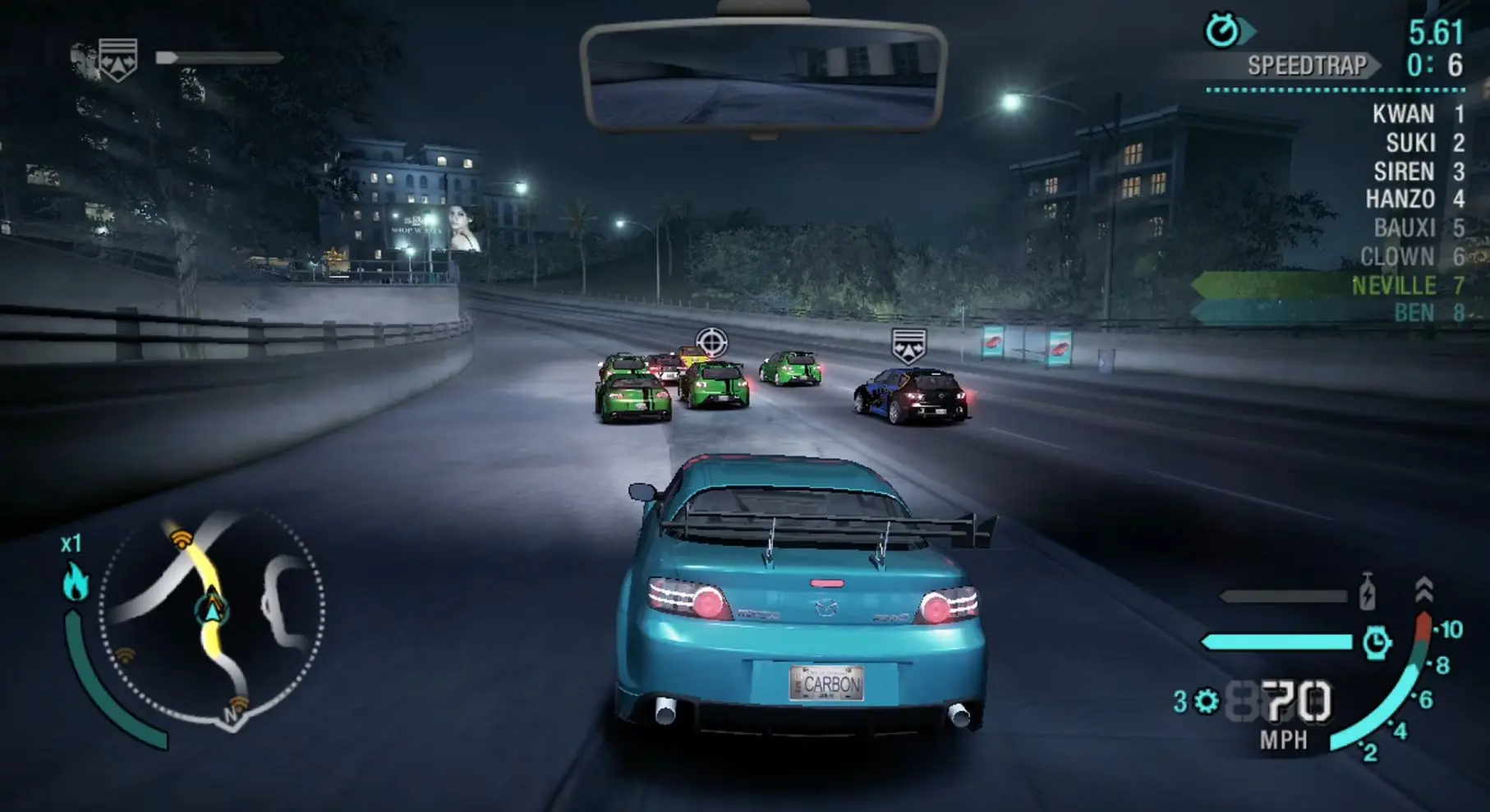
Settings and customization menu
You can access the PC SETTINGS panel from the main menu or by pressing the F1 key during gameplay. There you can change the graphical profile, the FPS cap, the aspect ratio, and whether you play in fullscreen or windowed mode. In the Advanced section you can adjust the resolution, sharpness, texture filtering, and whether you use Vulkan or DirectX 12. For more advanced users, the F4 key opens a panel with all the port’s options.
All changes are saved by pressing Apply in the nfsc.toml file, located next to the executable. Options marked with an asterisk restart the game by themselves, and you can also modify any setting via Windows’ command line.
Keyboard controls
| Key | Action |
|---|---|
| W, A, S, D | Navigate and move through menus |
| E and Q | Accelerate and brake |
| Space and Backspace | Accept and go back (A and B) |
| L and P | X and Y buttons |
| Enter and Tab | Start and Back |
| F1 | PC SETTINGS menu |
| F3 | View on-screen performance |
| F4 | All advanced options |
| F11 | Toggle fullscreen/window |
Common errors
- Windows blocks nfsc.exe. Windows SmartScreen may block it because the executable isn’t digitally signed.
- The game doesn’t start with your copy. Check that it’s the Xbox 360 Collector’s Edition, because the normal version and versions from other regions do not work.
- You chose the wrong file at startup. Delete the game_path.txt file in Documentsnfsc and reopen nfsc.exe to select again.
- Black screen on NVIDIA GPUs. This occurs with Vulkan’s “immediate” presentation mode, which the port’s profiles leave disabled, so do not enable it manually.
- Something goes wrong during play. Open an issue on the project’s GitHub with what happened, your graphics card, and the profile you were using, and attach the log from the logs folder next to nfsc.exe.
