The recent NVIDIA App update, version 11.0.9.565, introduced a significant technological novelty that surprised many users, because the tool activates automatically when updating the program, without seeking prior authorization or displaying a notice explaining its purpose.
The feature in question is an artificial intelligence capability that allows external programs to take control of several options within the application, which sparked concern among users because no one requested it, making it advisable to review the settings and disable it if it will not be used.
What is the NVIDIA App and what do virtual assistants do
If you’re not familiar with it because you’re not a PC user, or you are but you’ve never owned a GPU from the brand, here’s what the NVIDIA App is: the main program for computers used to manage graphics cards, update drivers, and optimize the visual quality of games, in addition to enabling features such as the new Frame Generation mode.
With this update, the program incorporates an MCP server, a communication technology that allows virtual assistants like Hermes, OpenClaw, or Perplexity to execute commands via written requests, giving them the ability to detect installed games and launch them.
Furthermore, it enables applying the recommended graphics configuration, recording gameplay videos with ShadowPlay, and taking screenshots, along with activating RTX Dynamic Vibrance and the performance counter, and even adjusting power consumption with Battery Boost and Whisper Mode on compatible notebooks. All of this runs via an internal server inside the computer itself, which also has read-only access to driver information and the list of games.
This implementation raised questions about control and privacy, as it leaves a local server designed for intelligent assistants running in the background without people explicitly requesting this feature on their computers, and without NVIDIA explaining in its update notes why it comes enabled.
Why it’s not advisable to keep it on and how to disable it in NVIDIA App
As VideoCardz notes, the outlet that first detected the change, most users do not need these tools for their daily tasks. Moreover, even though the server runs only inside the computer and does nothing if you do not have a compatible assistant installed, the information it gathers could end up on external servers if you use a cloud-based assistant.
To make matters worse, the server stays active in the background all the time, so the best decision for almost everyone is to disable the feature. To do so, simply follow these steps in NVIDIA App.
- Open NVIDIA App on your computer.
- Enter Settings, at the gear icon.
- Go to the Features section.
- Scroll down to the option Connect Agents & Apps.
- Turn off the switch “Allow AI agents to control NVIDIA App,” until it changes from green to gray.
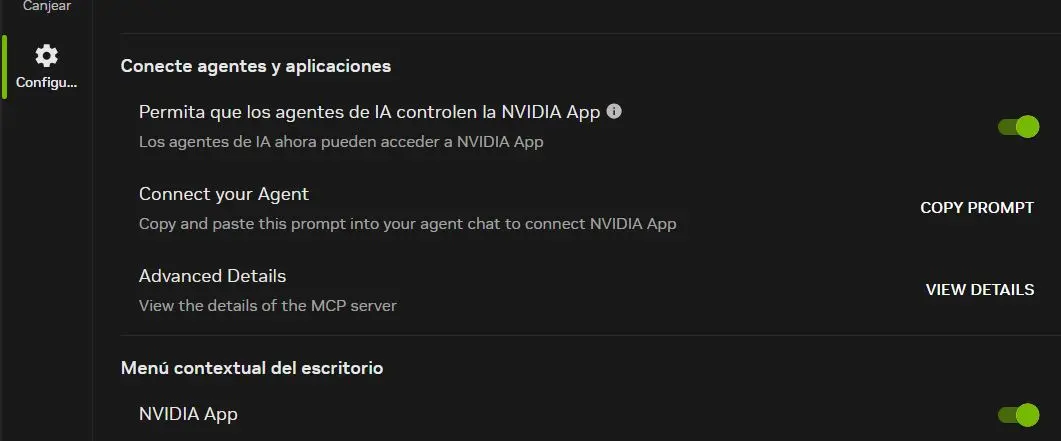
All of this ensures that, in the end, those who disagree with the automatic activation of this new feature upon updating NVIDIA App can turn it off and maintain full control over their computer. That said, it’s wise to check this option after each update in case it reactivates, although you can always re-enable it from the same menu if you ever want to use an assistant.
