
NVIDIA graphics cards would be writing large amounts of data to the SSD even when the PC is idle, according to user reports on the NVIDIA forums and on Reddit that Wccftech has collected, with cases reaching up to 30 GB per hour. The culprit would be NVDisplay.Container.exe, a process of the NVIDIA Display Container LS service that is installed along with the drivers—the software that powers the graphics card—and that rewrites a log file named nvlog.nvlgstg over and over instead of simply adding information.
The problem comes a few days after AMD fixed an almost identical error in its Radeon cards with the Adrenalin 26.11.1 software, according to Wccftech, but in this case NVIDIA hasn’t acknowledged it yet, because its 621.24 release notes, published on November 12, do not mention it among known issues. What matters for gamers is that an SSD has a finite write endurance over its lifetime, so constant background writing wears it out even when the user isn’t actively using the PC.
What’s happening with NVIDIA graphics cards and your SSD
Las mediciones de los usuarios apuntan a la versión 621.14 del software de NVIDIA, que salió el 4 de noviembre, como la que empeoró el problema, porque un usuario midió unos 515 MB en cinco minutos con el PC sin uso, contra menos de 2 MB con la versión anterior, la 621.01. Otro usuario reportó más de 3 GB en diez minutos, y uno con la versión 621.24 llegó a cerca de 30 GB por hora, según el mismo Wccftech.
Wccftech también lo reprodujo en un PC con Windows 11 y una RTX 4090, donde midió cerca de 1,43 MB por segundo sin uso, lo que equivale a unos 5,2 GB por hora si se mantuviera, aunque el medio aclara que esa medición puntual no prueba un desgaste real del SSD a largo plazo. El problema tampoco afecta a todos, porque a algunos usuarios se les detuvo al desactivar las funciones de grabación ShadowPlay o Highlights de NVIDIA, a otros les siguió pasando con todo apagado y a otros simplemente no les ocurre.
How to know if your PC is affected
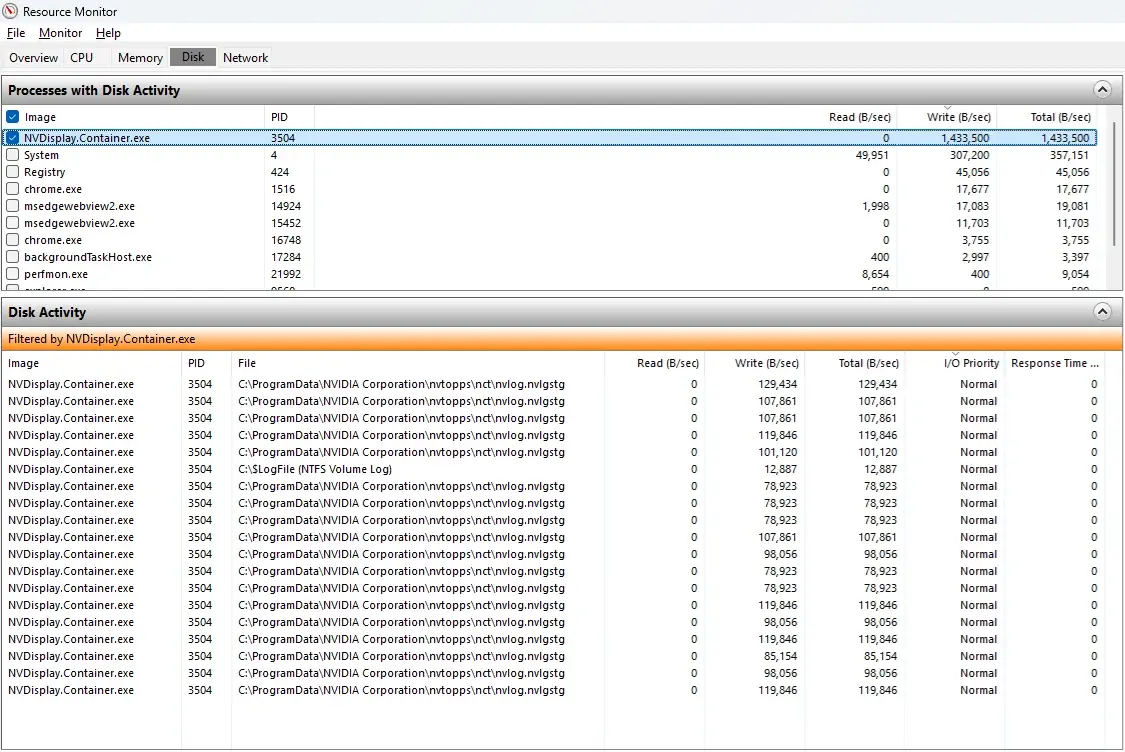
The simplest way to check it is with Windows’ Resource Monitor, which comes with the system and shows which program is writing to your disk.
- Press Windows + R at the same time to open the Run window.
- Type resmon and press Enter. The Resource Monitor will open.
- Click the Disk tab at the top of the window.
- In the Processes with disk activity section, look for NVDisplay.Container.exe. If you don’t see it, click the column header Write (B/s) to sort the processes by the amount of data they write.
- Leave the PC idle for a couple of minutes and look at the Write (B/s) column. If NVDisplay.Container.exe appears to be writing continuously, your PC is affected.
How to curb the writes while NVIDIA fixes it
There are two fixes that users have found effective. The first is temporary, because the file can start growing again, and the second is to revert to a previous version of NVIDIA’s software.
Temporary workaround
- Press Windows + R, type services.msc and press Enter to open Windows’ services list.
- Find NVIDIA Display Container LS, right-click it and choose Stop.
- Press Windows + R again, paste %ProgramData%NVIDIA Corporationnvtoppsnct and press Enter. This will open the folder where the file is located.
- Delete the file nvlog.nvlgstg.
- Return to the services list, right-click NVIDIA Display Container LS again and choose Start.
Do not leave that service disabled forever, because according to Wccftech, doing so can cause the NVIDIA Control Panel and the NVIDIA App to stop working.
Rollback to 621.01
- Go to the NVIDIA driver page and look for the 621.01 version for your graphics card.
- Download it and run the installer.
- When prompted for the installation type, choose Custom and select the option Perform a clean installation to replace the current version completely.
- Restart your PC when finished and recheck the Resource Monitor.
Be aware that reverting to an older version means you’ll miss the improvements of newer releases, such as optimizations for newly released games.
The same problem AMD just fixed
The AMD case began in a very similar way, with a process from its software named AMD External Events Utility that wrote continually to the disk, and a Reddit user claimed that their SSD lost 1% of life per month for 16 months, according to Everyeye. The difference is that AMD acknowledged the error and fixed it in under a week, while NVIDIA’s issue with that same file dates back longer, as Wccftech found a report in Dell’s community from January 2025 describing the same behavior and similar complaints dating to 2021, though never with these exact figures.