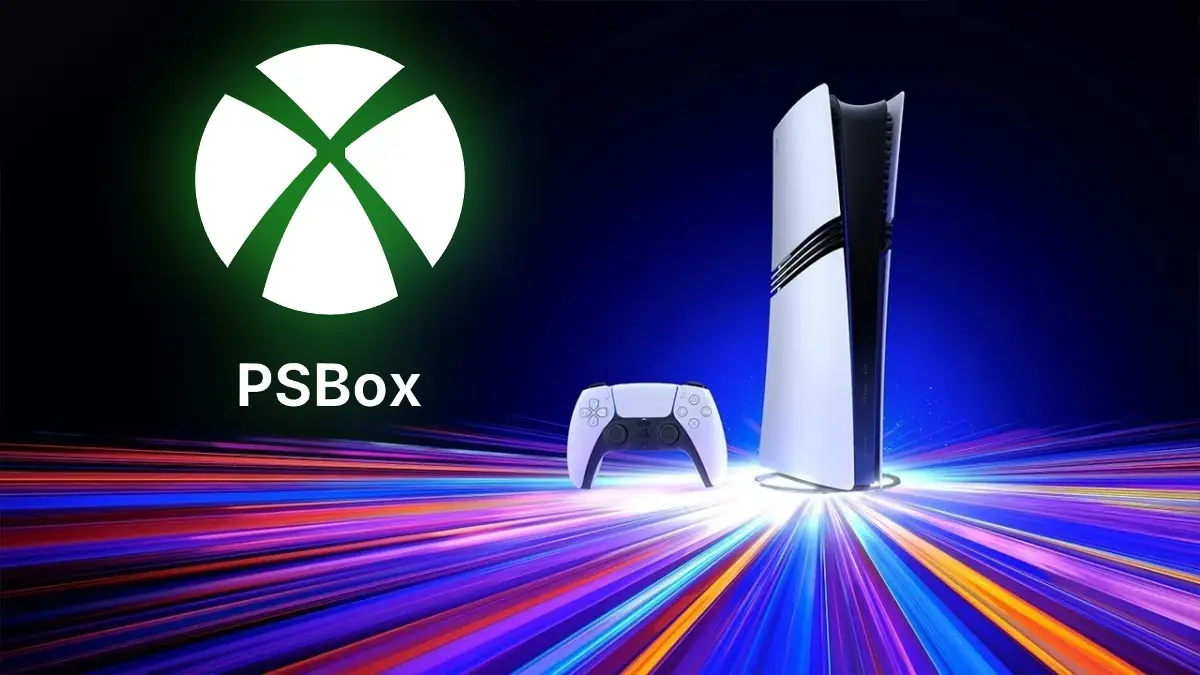
Now it is possible to play Xbox exclusives like Gears of War E-Day on a PS5, because the Brazilian programmer RafaelNGP released PSBox Cloud Gaming, an unofficial app that brings Xbox Cloud Gaming to the PlayStation console and lets you stream Microsoft’s cloud gaming catalog directly to your TV, with the DualSense in your hands and without needing an Xbox. The important detail is that it only works on unlocked consoles, that is, on PS5s modified to run homebrew programs, something most players don’t have, but which shows how far the community working with the PlayStation console has progressed.
The case that drew the most attention was Gears of War E-Day, which according to Windows Central never reached PlayStation as part of Xbox’s return to exclusives, and one of its editors ended up playing in Insane difficulty along with a friend, from a PS5 with this app. It’s a hard-to-ignore irony, because the same community that a few weeks ago managed to run PS2 games from the original disc on unlocked PS5s is now turning the console into a gateway to its rival’s catalog.
What Xbox Cloud Gaming Offers on Your PS5
The app streams games at 1080p and 60 FPS, and since the image comes from Microsoft’s servers, the PS5 doesn’t have to render the game itself; instead, it uses its GPU to upscale the image to 4K with FSR 1 or Anime4K, which improves clarity on large TVs although it does not equal native 4K. Additionally, the DualSense functions as an Xbox controller with the buttons adapted, preserves vibration and the light bar, and the app supports up to four controllers for local co-op play.
A recent update added Xbox Remote Play, a feature that allows you to play on the PS5 titles installed on your own Xbox, and which the programmer added days after a user requested it on Reddit. The app also attempts to reconnect automatically when the stream is interrupted, and includes a menu with streaming information and image settings.
What You Should Know Before Using It
To play most of the catalog you need a Game Pass subscription, because the app only opens the door to Xbox Cloud Gaming and does not replace buying the games, and Microsoft has also set hour limits on cloud gaming. Early users also report pixelated image during fast scenes, pink colors, and vibration issues, something to expect from an app that is still in development.
The biggest risk lies in the unlock, because modifying the PS5 means losing access to PlayStation’s servers, and the developer himself warns that he only tested the app on a PS5 with firmware 13.60, so it could fail on other versions. Additionally, your Microsoft login is stored in the account.json file inside the app’s folder, and you should never share it, because it provides access to your account. Any changes Microsoft makes to its login system could also cause the app to stop working without warning.
How to Use Xbox Cloud Gaming on Your PS5
- Download the PPSA99810.zip file from the latest PSBox Cloud Gaming version on GitHub, no compiling required.
- Extract the file and copy the entire PPSA99810 folder to the /data/homebrew/ path on your unlocked PS5, for example via FTP from your computer.
- Wait for the homebrew launcher, such as ShadowMountPlus, to add the PSBox Cloud Gaming icon to the home screen, and open it.
- Log in by visiting microsoft.com/link from your phone or computer, or scan the QR code, and enter the code that appears on the TV.
- To update the app, close it and copy the new folder over the old one, and your session remains active.
The PS5 is becoming an open platform for those who unlock it, and PSBox isn’t the only project on the way, because the programmer Mihawk showcased PS5 Proton, which according to his post on X could run Windows 32- and 64-bit games on the console, although there isn’t a downloadable version available yet.