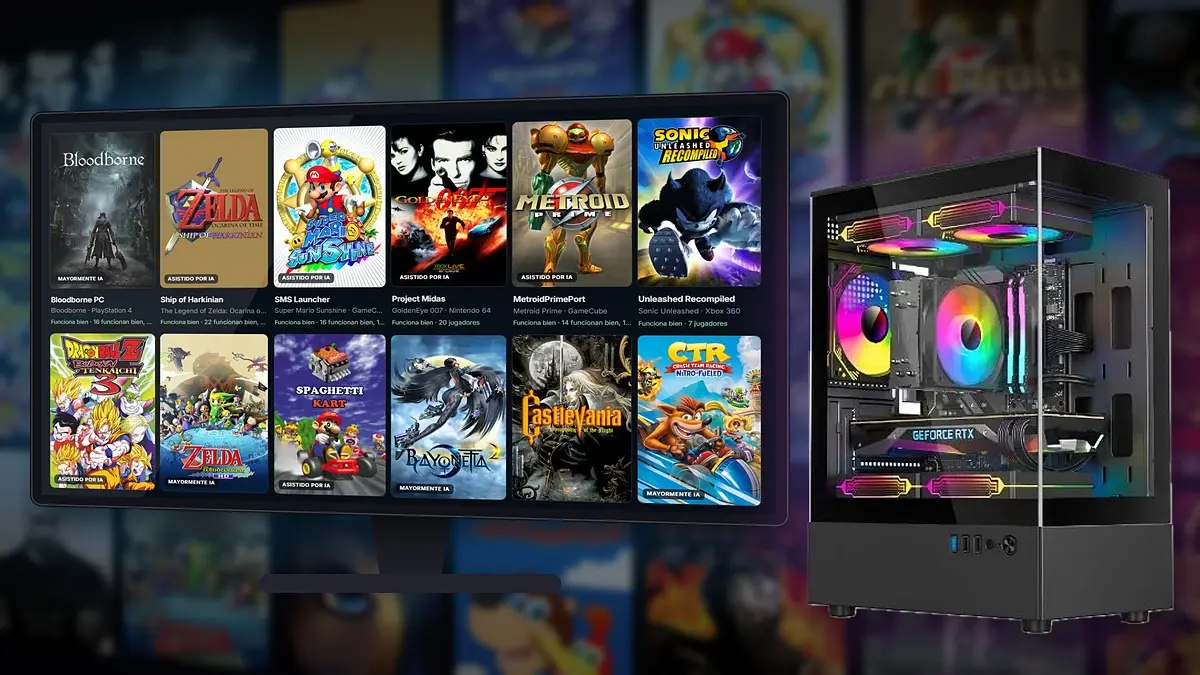
With so many free PC ports popping up every week—ranging from Zelda and Super Mario 64 to PlayStation exclusives that run without an emulator—finding them, installing them, and keeping them up to date has become a task in itself, and for that there is Quiver Launcher, a free and open-source Steam-like launcher dedicated solely to ports and recompilations. The program downloads each project directly from its official page on GitHub or GitLab, installs it, updates it, and leaves it ready to open from a single library, and it is available for Windows, Linux and Android, while the Mac version is still under development.
Its catalog gathers 674 apps, including free PC ports, recompilations, and tools, which can be filtered by project type, by the system they run on, such as Windows, Linux, macOS, Android and iOS, and by 33 different consoles, from the NES, the Super Nintendo and the Sega Genesis to the PS5, the Nintendo Switch and the Xbox One, along with rarities like the Virtual Boy, the Philips CD-i and the 3DO. Each game has its own page where players leave reviews and reports on how well they run, in addition to playlists curated by the community, and the launcher’s latest version, 3.5.1 released on October 15, improved input recognition on computers and fixed several issues on Android, besides enabling mod installations from Thunderstore and GameBanana.
The most popular games in Quiver Launcher
Among the free PC ports with the most player reports are Nintendo classics such as Zelda Ocarina of Time and Majora’s Mask in their Ship of Harkinian versions, Zelda Wind Waker, Super Mario Sunshine, the port of Mario Kart 64 called SpaghettiKart, Luigi’s Mansion, Metroid Prime, GoldenEye 007, Perfect Dark and Banjo-Kazooie, alongside PlayStation exclusives such as Bloodborne and P.T., the playable demo of Silent Hills that Konami pulled from the PlayStation Store.
The list also includes Crash Team Racing Nitro-Fueled with online, Dragon Ball Z Budokai Tenkaichi 3, Castlevania Symphony of the Night, Sonic Unleashed, Bayonetta 2, Burnout 3 Takedown, Ninja Gaiden Black, Splinter Cell Double Agent and Resident Evil Code Veronica X, each with its tag indicating how many players report it runs well.
How Quiver Launcher protects your downloads
The biggest fear when downloading free PC ports from the internet is ending up with a virus, and that’s the most interesting point about the launcher, because every new version that enters the catalog goes through an automatic VirusTotal analysis and must wait 48 hours before being marked as verified. Additionally, each file has a SHA-256 fingerprint that allows detecting if someone modified it, automatic updates always choose the verified versions rather than the latest, and those that are unverified or blocked show warnings before installing.
The catalog also includes a filter to know which projects used artificial intelligence in their development, though its creators clarify that it is a transparency label and not a security control. That said, none of these measures replace a full audit, so it’s wise to always check other players’ reviews before installing something.
What you need to know before using it
Quiver Launcher does not convert any game into a PC version, but rather curates projects made by other programmers, similar to Steam for ports we saw a few days ago, and many of these free PC ports require your own copy of the original game to work. The site also clarifies that being in the catalog does not mean the game’s publisher has authorized the project.
How to install Quiver Launcher on Windows
- Download the launcher. Go to Quiver Launcher’s downloads page, choose Windows, and download the file QuiverLauncher-win-Portable.zip, which doesn’t come with an installer because it runs as a portable program.
- Extract the file. Right-click the .zip, choose “Extract All,” and save the folder wherever you want to keep your library, for example in Documents, because that is where the games you install will be stored.
- Open the program. Enter the folder and double-click QuiverLauncher.exe, and if Windows shows the message “Windows protected your PC,” click “More information” and then “Run anyway.”
- Enter the catalog. The first time you open it, go to the catalog, which requires an internet connection, and search for the port you want by name or using the console and platform filters.
- Add the game to your library. Open the port’s page, review the reviews and reports from other players, and press the button to add it to your library.
- Download it and play. Return to your library and press the game’s download button, which will switch to the open game button when it finishes.
- Add the game files if required. If the port needs your original copy, check its page’s instructions, because each project indicates which file you need and where to place it.
To install it on an Android phone, download the file QuiverLauncher-android.apk from the same page, open it, and if the phone warns you that unknown sources are not allowed, enable the permission for your browser and tap “Install” again.
