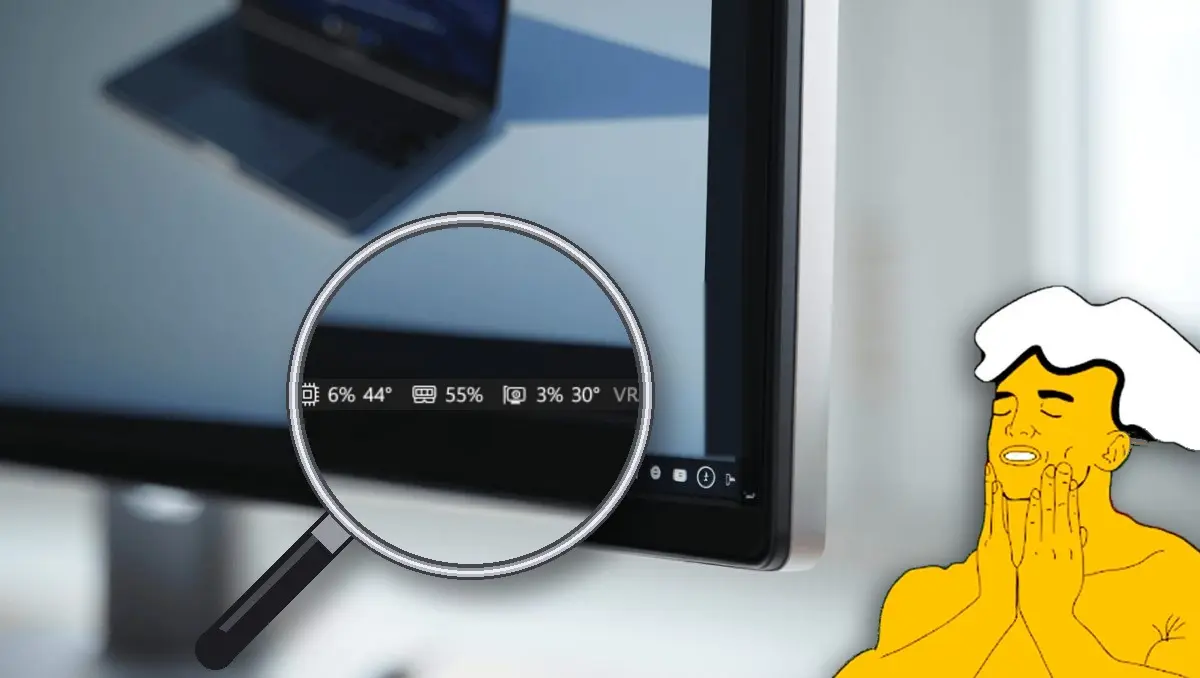
TraySense is a new free program for Windows 10 and 11 that displays the usage of the processor, the graphics card, RAM and video memory, as well as the temperatures of your CPU, GPU and SSD, directly on the taskbar, next to the clock and the system tray icons, so you can monitor your PC while gaming without opening any other program. Its creator, the developer known as DM Tweaks, published the program on GitHub, where the file weighs barely 100 KB and uses at most between 1 and 3 MB of RAM, a minimal figure when compared to traditional hardware monitors, which usually take tens or hundreds of megabytes.
Besides being lightweight, TraySense is designed not to bother you while you play, because it only updates the display when a number changes and stops checking the hardware when the monitor is turned off. Temperatures change to orange when they rise and to red when they reach very high levels, with alerts at 80 and 90 °C for the processor and the graphics card, and at 65 and 75 °C for the SSD, so you can tell at a glance if something is overheating.
What TraySense Shows on Your Taskbar
TraySense displays in a single line the usage percentage of the CPU, the GPU and the RAM, the usage of VRAM (the graphics card memory), and the temperatures of the CPU, GPU and SSD. If you left-click on the numbers, Windows’ Task Manager opens to show which program is occupying your PC, and with a right-click you enter its settings.
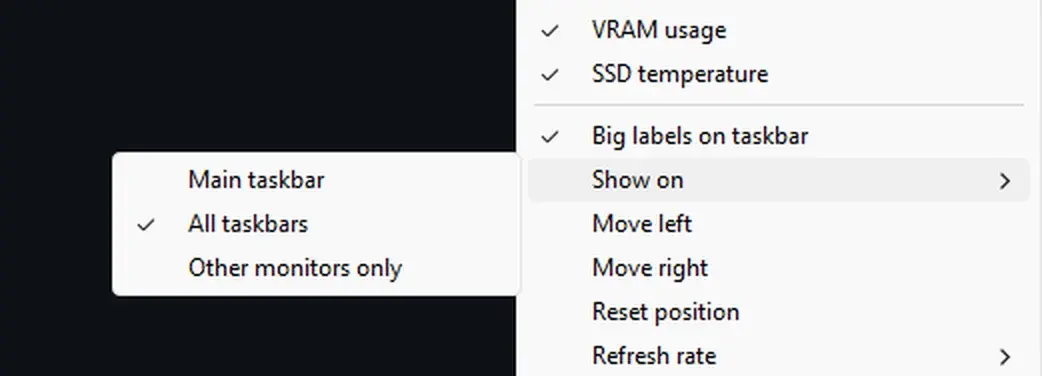
The 1.1 version, released today, fixes a bug that caused the data to overlay the taskbar icons, and when space is limited it switches to a more compact layout. It also adds more options to the right-click menu and allows showing the data on all your screens if you use more than one monitor, from the Show on option.
TraySense can also be combined with Wireless Battery, the program we showed you this week to view the battery levels of your mouse, headphones and controller in the Windows taskbar. With both programs open, in a single line next to the clock you can see the usage and temperature of the processor, the graphics card and the SSD, and also how much battery remains for the headphones, the mouse, the keyboard and the controller, without opening any window while you play.

How to Download and Install TraySense Step by Step
- Go to the TraySense page for the latest version on GitHub and, in the Assets section, download the TraySense .exe file. Do not download those labeled Source code, because they do not include the ready-to-use program.
- Save the file in an easy-to-find folder, for example in Documents. You don’t need to install anything else.
- Double-click the file. If Windows shows a blue warning because the program is new, click More information and then Run anyway.
- Immediately you will see the numbers on the taskbar, next to the clock.
- Right-click the numbers to open the settings. There you can check or uncheck which data to show, such as VRAM usage for the graphics card memory or SSD temperature for the drive’s temperature, and activate Big labels on taskbar if you want larger numbers. In Show on you choose where they appear: Main taskbar leaves them only on your primary monitor, All taskbars shows them on all your screens, and Other monitors only puts them only on secondary displays. With Move left and Move right you change their position on the bar, Reset position returns them to their original place, Refresh rate defines how often the numbers update, and Start with Windows makes the program open automatically every time you turn on the PC.
- To view the processor temperature, enable it from the right-click menu. Windows will ask for administrator permission to install PawnIO, a small driver that allows reading the processor’s sensors. Accept, and from that moment TraySense copies itself to the Program Files folder and opens with administrator rights when you boot the PC.
PawnIO is the same driver used by well-known monitoring and fan-control programs, but since TraySense is very new, download it only from its official page on GitHub, where its creator also explains how to verify that the file is the original. If you want extra peace of mind, you can upload the file to VirusTotal before opening it, and if your SSD is one of the ones that heat up a lot, this program will also help you monitor it, along with checking issues such as the error that causes NVIDIA graphics cards to write up to 30 GB per hour to your SSD.
To uninstall it, uncheck Start with Windows in the right-click menu, which also deletes the copy in Program Files, then close TraySense and delete the file. If you want to restore the PC to its original state, you can remove PawnIO from Settings > Apps in Windows.
